(This solution assumes that you have Tera Term (free download terminal software) installed on your PC a Proteus RS232 adapter and data cable to connect the Proteus.
1. Connect the Proteus to your PC and wait for the green flashing light in the Proteus.
2. Open Tera Term and go through the configuration process below:
Tera Term Configuration:
Setup -> Terminal -> <Tick “Local Echo”> -> Click “OK”
Setup -> Serial Port -> <Change Baud rate to “19200”> -> Click “OK” – save setting
If the font is too small you can change the font size at Setup -> Font
You can also alter the window size at Setup -> Terminal (See Terminal size – I use 120 x 40)
Setup -> Save Setup (so you don’t have to do this every time you use Tera Term.)
4. If necessary, go to File -> New Connection and select the COM port where you see the Prolific RS 232 adapter.
5. Restart the Proteus
(You may see either a blank screen or scrolling data at this point.) In any case type restart and press [enter] even if the scrolling continues. When you press [enter] the Proteus will re-boot and you should see a screen like this.
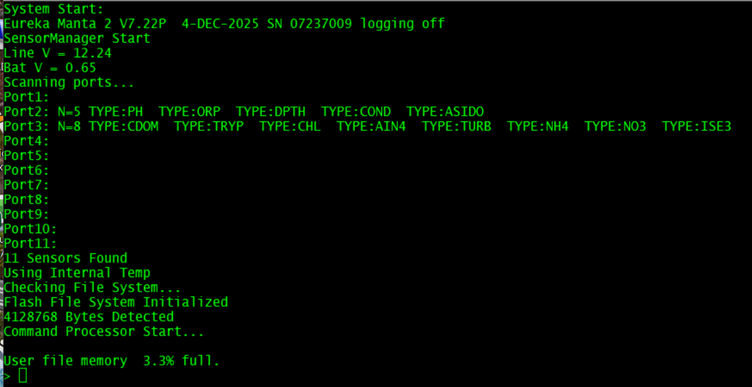
6. (On this unit you can see on the second row of data that the firmware of the CPU is V7.22P and the serial number is 07237009.)
7. To find the firmware revision of the AIB board from the screen above, type pt 3 [enter]. Then type fv [enter] . You should see the following at the bottom of the screen.
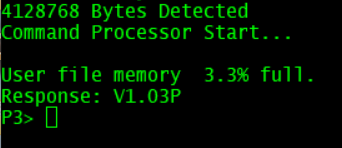
This shows the AIB firmware is V1.03P.
Please take a screenshot of the whole screen and send it to us if we have requested firmware information.
Was this article helpful?
That’s Great!
Thank you for your feedback
Sorry! We couldn't be helpful
Thank you for your feedback
Feedback sent
We appreciate your effort and will try to fix the article