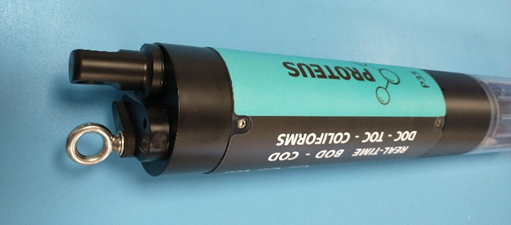
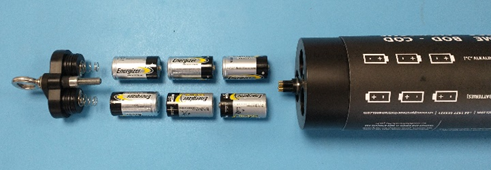
A Proteus fitted with an IBP can log data autonomously to its internal memory drawing power from 6 C-cells housed internally. Before logging, insert 6 industrial quality (energizer, Duracell Pro-cell, or similar) C cells into the battery compartment by opening the top cover.
NOTE: Pay attention to the polarity markings on the side of the Proteus and ensure the batteries are inserted correctly!
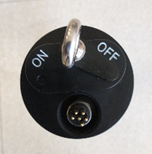
Replace the cap with the switch in the ‘off’ position.
Important: To prevent leakage and possible damage, always apply a small amount of Molikote 111 (supplied with your Proteus) to the O-rings on the battery cap when re-installing, take care to make sure each ring is thinly covered.
Also apply a small amount of Molikote 111 around the inside of the top of the compartments.
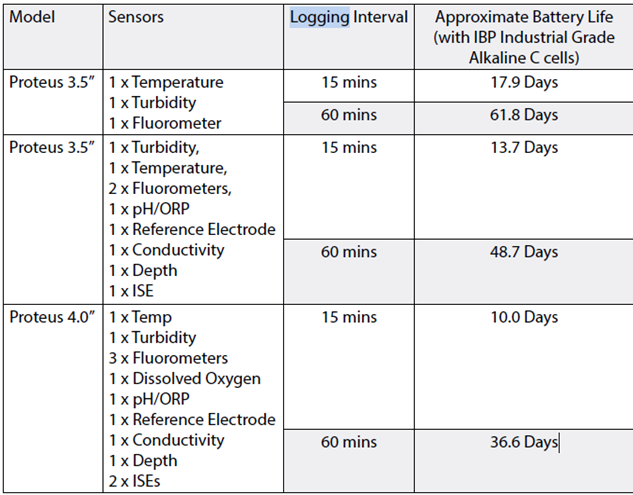
Approximate guide to battery life
Battery life will depend upon the frequency of data logging selected.
Preparing to log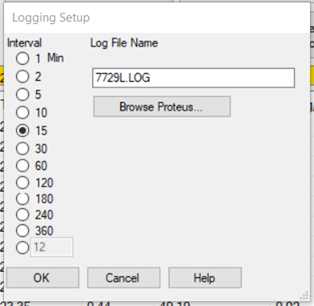
- Connect the Proteus to your computer to the Proteus using the RS232 – USB adaptor supplied
- Go to Proteus > Logging Set-Up… to set the logging interval required and set a file name as required. (Image right)
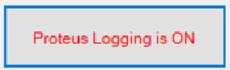
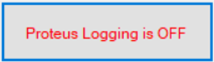
- Once you have set up the log you can click the Proteus Logging is OFF button and it will change to "Proteus Logging is ON" (Image below)
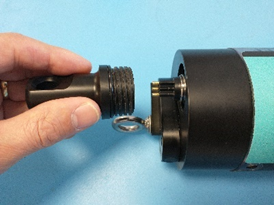
- Disconnect the Proteus from the computer and replace the cap on the 6-pin connector. (Image right)
Deploying the Proteus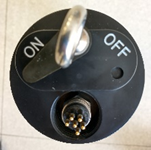
- When you’re ready to deploy the Proteus to log, undo the eye bolt on the battery compartment cap and move the switch to the ON position. To confirm that logging has begun, the internal LED will flash RED 5 times and then AMBER once for each volt of battery power. Whilst logging the Proteus will automatically activate the wiper and log at the interval selected, ‘sleeping’ in between logs to preserve the batteries. (Image right)
- Remove the calibration cup and attach the sensor guard over the Proteus’ sensors.
- Deploy the Proteus in the desired logging location.
- When the logging is complete, recover the Proteus and return the switch to the OFF position.
- Clean off the sensors with water and replace the calibration cup in place of the sensor guard with a small amount of water in the bottom.
Recovering the data log files
- Remove the cap from the 6-pin connector and reconnect the Proteus to your computer. Start Proteus manager.
- Click the Proteus Logging is ON button and the button will change to "Proteus Logging is OFF
- Go to Proteus > Manage Proteus Files… to open the file manager. (Image below)
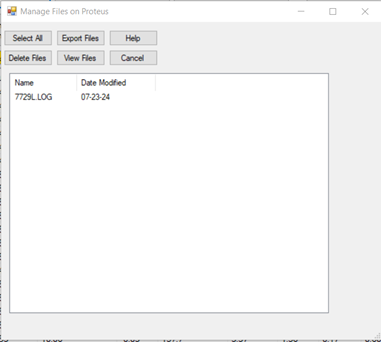
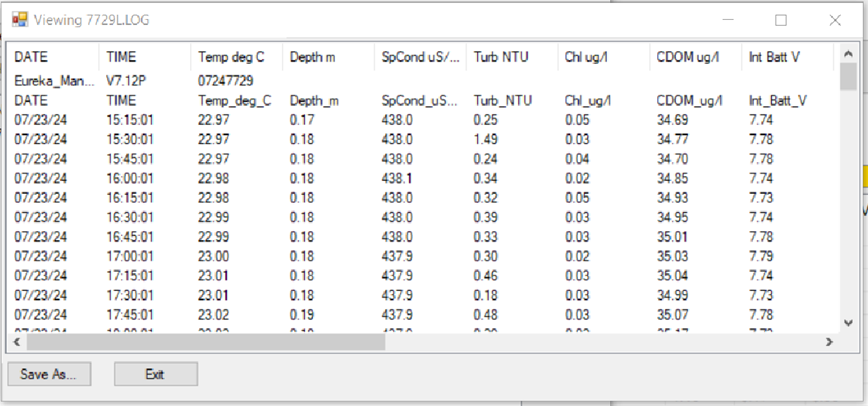
- Use the buttons to manage the files stored on the Proteus and download any that you will need to use. Log files will remain on the Proteus until deleted even when there are no batteries installed. (If you’re hiring the Proteus please make sure you have downloaded all your logged data before returning the unit.) The log files are stored as .csv files when downloaded and will open with Microsoft Excel and other spreadsheet applications. Here is an example of the data contained in a log file:
- Once you have the data you need, remove the C-cells from the battery compartment to avoid damage from leakage and corrosion whilst in storage. The Proteus should always be stored without batteries installed.
If you have any questions, please contact our support team at support@proteus-instruments.com
Was this article helpful?
That’s Great!
Thank you for your feedback
Sorry! We couldn't be helpful
Thank you for your feedback
Feedback sent
We appreciate your effort and will try to fix the article